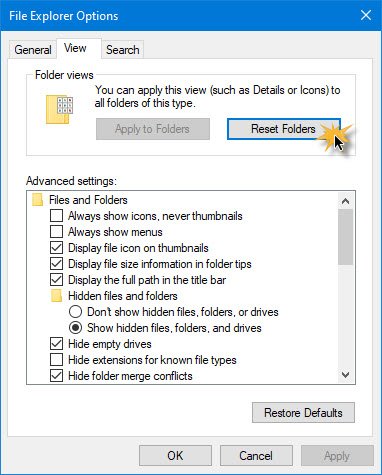
Something is stopping Folder View settings from changing?

404

Member
Messages
32
Reaction score
1
When I try to change how a folder is displayed from he "View" tab in file explorer; it doesn't stick. Going to another folder and back; the changes are reverted.

Definitely is an NTLite setting as a stock ISO (even with all my other tweaks) doesn't have this problem.

Any idea what it could be? Thanks.
 
If you have the preset of the modifications, having removed the personal information (licence key, etc...)
 
Otherwise, to reset the view of all directories/folders to default settings, you can delete these registry keys (make a backup first, right click on the key, then export)

Code:
HKCU\SOFTWARE\Classes\Local Settings\Software\Microsoft\Windows\Shell\BagMRU
And
Code:
HKCU\SOFTWARE\Classes\Local Settings\Software\Microsoft\Windows\Shell\Bags

Then make the setting (view) you want and it should be saved
 
I don't really wish to post my config, but I don't remove any "Components". I only customize the "Settings" and "Features" tab in NTLite.

Even deleting those directories, the view settings I put in File Explorer just don't stick, but in a stock ISO they do.
 
If you don't want to share the complete XML, then post the following sections:

Your <GUID> is a randomly generated ID for NTLite to track images, it changes every time a new image is created.
It's not a security issue.
Code:
        <AppInfo>
                <Version>2024.7.10001</Version>
                <Licensed>Yes</Licensed>
                <Protections>Yes</Protections>
                <Host>Windows 11 Professional 24H2 x64 - 10.0.26100.1150 (en-US)</Host>
        </AppInfo>
        <ImageInfo>
                <Version mode="offline">Windows 11 Professional 24H2 x64 - 10.0.26100.1150 (en-US)</Version>
                <GUID>{F42A7346-73FF-4776-8255-7DA878F76B9A}</GUID>
        </ImageInfo>

Code:
        <Features>
                <Feature name="Language.Handwriting~~~en-us~0.0.1.0">false</Feature>
                <Feature name="Language.OCR~~~en-us~0.0.1.0">false</Feature>
                <Feature name="Language.Speech~~~en-us~0.0.1.0">false</Feature>
                <Feature name="Language.TextToSpeech~~~en-us~0.0.1.0">false</Feature>
                <Feature name="Language.Basic~~~en-us~0.0.1.0">false</Feature>
                <Feature name="OneCoreUAP.OneSync~~~~0.0.1.0">false</Feature>
                <Feature name="Printing-Foundation-InternetPrinting-Client">false</Feature>
                <Feature name="MathRecognizer~~~~0.0.1.0">false</Feature>
                <Feature name="Printing-PrintToPDFServices-Features">false</Feature>
                <Feature name="Printing-Foundation-Features">false</Feature>
                <Feature name="Print.Management.Console~~~~0.0.1.0">false</Feature>
                <Feature name="MSRDC-Infrastructure">false</Feature>
                <Feature name="SmbDirect">false</Feature>
                <Feature name="App.StepsRecorder~~~~0.0.1.0">false</Feature>
                <Feature name="WCF-TCP-PortSharing45">false</Feature>
                <Feature name="WCF-Services45">false</Feature>
                <Feature name="WindowsMediaPlayer">false</Feature>
        </Features>

Code:
        <Tweaks>
                <Settings>
                        <TweakGroup name="CrashControl">
                                <Tweak name="CrashControl\AutoReboot">0</Tweak>
                                <Tweak name="CrashControl\LogEvent">0</Tweak>
                                <Tweak name="CrashControl\CrashDumpEnabled">0</Tweak>
                        </TweakGroup>
...
                        <TweakGroup name="WindowsUpdate">
                                <Tweak name="DriverSearching\SearchOrderConfig">0</Tweak>
                                <Tweak name="Preferences\ModelDownloadAllowed">0</Tweak>
                                <Tweak name="Device Metadata\PreventDeviceMetadataFromNetwork">1</Tweak>
                                <Tweak name="DeliveryOptimization\DODownloadMode">99</Tweak>
                                <Tweak name="WindowsUpdate\DisableWUfBSafeguards">1</Tweak>
                                <Tweak name="7971f918-a847-4430-9279-4a52d1efe18d\RegisterWithAU">0</Tweak>
                                <Tweak name="WindowsUpdate\ExcludeWUDriversInQualityUpdate">1</Tweak>
                                <Tweak name="MRT\DontOfferThroughWUAU">1</Tweak>
                                <Tweak name="Settings\HideMCTLink">1</Tweak>
                                <Tweak name="Settings\RestartNotificationsAllowed2">0</Tweak>
                                <Tweak name="WindowsUpdate\TargetReleaseVersionInfo">24H2</Tweak>
                                <Tweak name="AU\AUOptions">2</Tweak>
                        </TweakGroup>
                </Settings>
 
From memory, there are no options in NTLite to "prevent" saving views, etc...
We should see the modifications made

In case, navigate to the following registry paths and check for a DWORD "NoSaveSettings":
Code:
HKEY_CURRENT_USER\Software\Microsoft\Windows\CurrentVersion\Policies\Explorer
HKEY_LOCAL_MACHINE\Software\Microsoft\Windows\CurrentVersion\Policies\Explorer
And delete the key if it is present
you can also search the registry for the key "NoSaveSettings"

Otherwise it might help you

 
Last edited:
Settings > Privacy > ShellBags

This might be the culprit. Can anyone tell me if it's possible to revert this on my live image? Thanks.
 
When you have too many folders with custom saved views, ShellBag's default cache size will quickly be exceeded.

You have two options:
1. Run a reg command to increase the ShellBag's limit.
Code:
reg add HKEY_CURRENT_USER\Software\Classes\Local Settings\Software\Microsoft\Windows\Shell /v "BagMRU Size" /t REG_DWORD /d 20000 /f

2. Download and run LesFerch's WinSetView tool on GitHub.

The idea behind WinSetView is by customizing the default folder views, then you don't need to change as many folders later on. The ShellBags cache will grow at a much slower rate, before you hit the limit. You can also combine the two solutions.
 
When you have too many folders with custom saved views, ShellBag's default cache size will quickly be exceeded.

You have two options:
1. Run a reg command to increase the ShellBag's limit.
Code:
reg add HKEY_CURRENT_USER\Software\Classes\Local Settings\Software\Microsoft\Windows\Shell /v "BagMRU Size" /t REG_DWORD /d 20000 /f

2. Download and run LesFerch's WinSetView tool on GitHub.

The idea behind WinSetView is by customizing the default folder views, then you don't need to change as many folders later on. The ShellBags cache will grow at a much slower rate, before you hit the limit. You can also combine the two solutions.
The reg doesn't fix it unfortunately.
I literally don't have any saved views. Windows refuses to make any stick and they are instantly forgotten when clicking away. That's what the "Shellbags" option does for me.

WinSetView isn't an option either. I've tried it before and it just isn't capable of changing 1 small thing without messing up other things or default column sizes.

I confirmed it definitely is this option though between 2 identical ISOs in VMs (only change being Shellbags.)

Could you tell me EXACTLY what the Shellbags option changes? Is there any possible way I can revert it?
 
I disabled ShellBags in Settings, and checked what changes NTLite applied to Default User's NTUSER.DAT:
Code:
[HKEY_CURRENT_USER\Software\Classes\Local Settings\Software\Microsoft\Windows\Shell]
"BagMRU Size"=dword:00000001
ShellBags size is 1.

Code:
[HKEY_CURRENT_USER\Software\Microsoft\Windows\CurrentVersion\RunOnce]
"ShellBagMRU Size"="REG ADD \"HKCU\\SOFTWARE\\Classes\\Local Settings\\Software\\Microsoft\\Windows\\Shell\" /v \"BagMRU Size\" /t REG_DWORD /f /d 1"
NTLite creates a RunOnce task to apply the same change (on logon) just to make sure.

So Option #1 is the correct fix. Unless you made some other changes not mentioned here.
 
I disabled ShellBags in Settings, and checked what changes NTLite applied to Default User's NTUSER.DAT:
Code:
[HKEY_CURRENT_USER\Software\Classes\Local Settings\Software\Microsoft\Windows\Shell]
"BagMRU Size"=dword:00000001
ShellBags size is 1.

Code:
[HKEY_CURRENT_USER\Software\Microsoft\Windows\CurrentVersion\RunOnce]
"ShellBagMRU Size"="REG ADD \"HKCU\\SOFTWARE\\Classes\\Local Settings\\Software\\Microsoft\\Windows\\Shell\" /v \"BagMRU Size\" /t REG_DWORD /f /d 1"
NTLite creates a RunOnce task to apply the same change (on logon) just to make sure.

So Option #1 is the correct fix. Unless you made some other changes not mentioned here.
Sorry, it did fix it. The machine just needed a restart
 
Normally you just need to restart Explorer, or log out after making any changes.
Code:
taskkill /f /im explorer.exe
start explorer
 
Back
Top